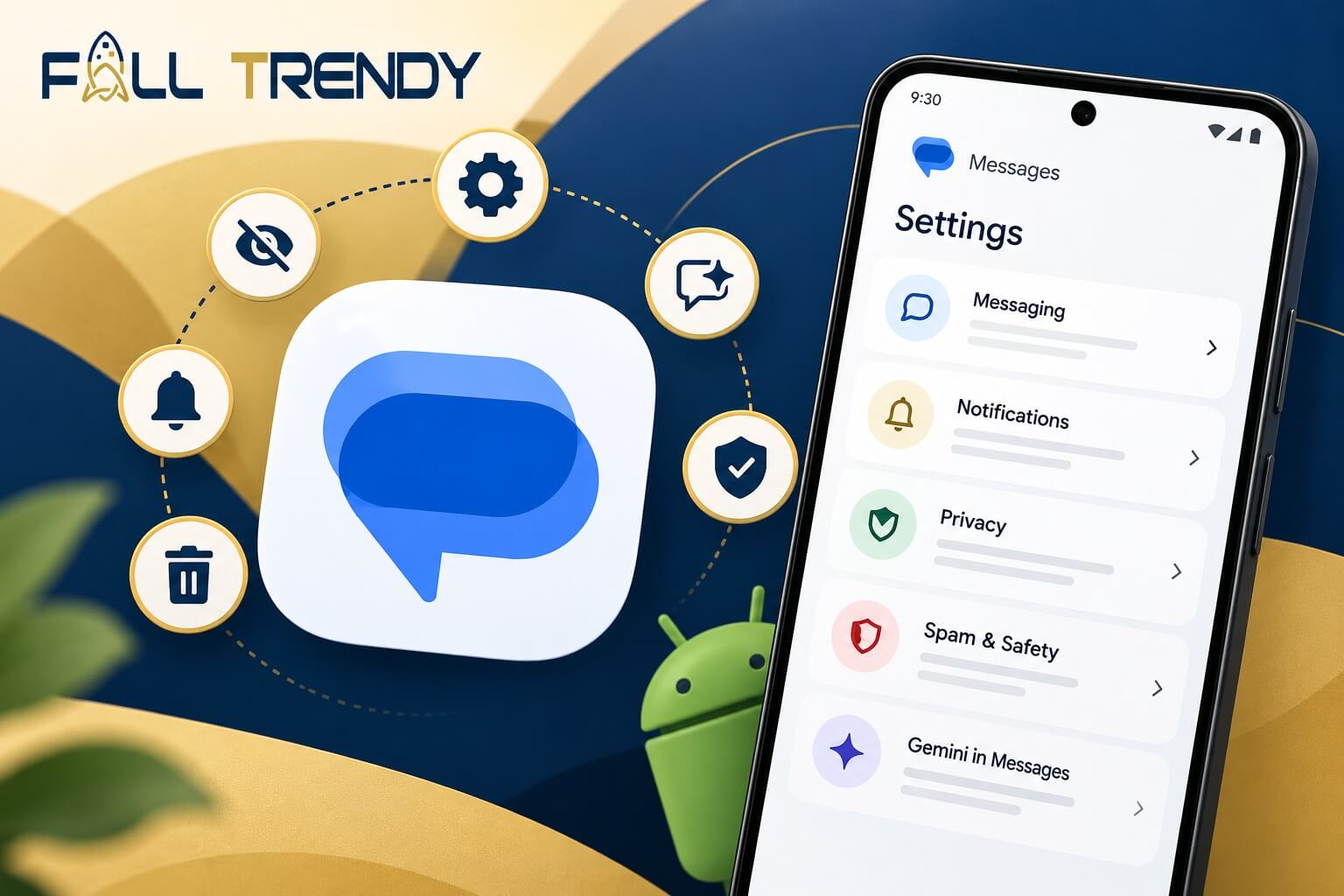
Google Messages is testing a redesigned Settings menu that replaces its crowded list of options with clearer categories for messaging, privacy, notifications, and security. The changes have appeared in a beta version of the app, but Google has not announced a wider release date.
The redesign, first detailed by Android Authority, does not introduce an entirely new messaging experience. Instead, it reorganizes existing controls that can be difficult to find, from RCS read receipts to spam protection and Gemini.
While Google works on the new layout, several useful settings are already available in the current app.
What Is Changing in Google Messages?
The experimental interface was identified in Google Messages beta build messages.android_20261020_00_RC00.phone.openbeta_dynamic.
Instead of placing RCS, notifications, chat bubbles, and other preferences in one long menu, the new design separates them into categories such as Messaging, Notifications, Privacy, and Spam & Safety. Each section has a description to help users identify the relevant controls.
The Messaging section brings together RCS and SMS/MMS options, connection-related settings, and automatic downloads. Privacy receives a more focused area for profile information, read receipts, and typing indicators.
Google is also adding illustrations to individual settings screens, including Gemini and Suggestions & Actions. Not every page has received the same treatment.
Some labels remain inconsistent. For example, a section named Spam & Safety can open a screen titled Protection & Safety, suggesting that parts of the interface are still being refined.
5 Google Messages Settings Worth Checking
These controls are available in existing versions of Google Messages, although their availability and menu locations may differ by phone and app version.
1. Read Receipts and Typing Indicators
RCS makes texting more interactive by showing when a message has been read or when someone is typing. Those signals can be useful, but they are optional.
Open Google Messages → Profile picture → Messages settings → RCS chats.
Two separate switches control this behavior:
Send read receipts lets other people know when you have read their RCS messages.
Show typing indicators lets them see when you are composing a reply.
Turning these off does not disable RCS itself. You can continue using supported RCS features without sharing those particular activity indicators. For instructions covering other messaging apps, see our guide on how to turn off read receipts on Android.
Google’s experimental redesign moves these controls into the Privacy section, making them easier to distinguish from connection and delivery settings.
2. Message Previews on the Lock Screen
Incoming texts can reveal information before you unlock your phone. A verification code, private conversation, or delivery notification may be visible to anyone looking at the screen.
To review this behavior, open Messages settings → Notifications. Depending on your device, you may find controls for notification pop-ups and whether message content appears on the lock screen.
On supported Samsung phones, options can include a brief pop-up style and hiding content while the device is locked. Pixel phones and other Android devices use different notification interfaces, so those exact labels will not appear everywhere.
The useful distinction is between receiving a notification and displaying its contents. You can often keep alerts enabled without showing the full message on a locked screen.
3. Gemini and Smart Suggestions
Google Messages includes Gemini access and several smaller assistance features, but not everyone needs them in their texting app.
If the Gemini shortcut is available on your device, open Messages settings → Gemini in Messages and turn off Show Gemini button to hide it.
This is an interface preference, not a complete privacy control. Hiding the button does not delete previous Gemini conversations or disable Gemini across Android.
For other automated features, check Messages settings → Suggestions & Actions. Depending on your version, you can manage suggested replies, stickers, contextual actions, and reminders known as Nudges.
These are separate functions, so there is no need to disable all of them. Keep whichever ones are useful and switch off the interruptions you do not want.
One distinction matters: Google states that conversations directly with Gemini in Messages are not end-to-end encrypted. They should not be confused with eligible encrypted RCS conversations between people.
4. Swipe Actions for Conversations
Google Messages lets you decide what happens when you swipe a conversation left or right in your inbox.
Open Messages settings → Swipe actions, then choose Customize for each direction.
Available actions can include archiving a conversation, moving it to Trash, marking it read or unread, or disabling the gesture.
For example, you can assign one direction to Archive and the other to Mark as read or unread. That gives each gesture a distinct purpose without requiring you to open a conversation.
If accidental swipes are a problem, selecting Off is also an option.
Google’s Trash feature keeps deleted conversations for up to 30 days, or 7 days on Android Go devices, before permanently deleting them.
5. Automatic Deletion of Verification Codes
One-time passwords (OTPs) are useful when signing into accounts, but expired verification messages can accumulate in your inbox.
Some versions of Google Messages include an option under Messages settings → Message organization called Auto-delete OTPs after 24 hours.
When available and enabled, it is intended to remove recognized verification-code messages after 24 hours instead of leaving them in your conversation history indefinitely. However, a verification code may still be needed after 24 hours, particularly for a delayed delivery. Once automatically deleted, it may no longer be available when you need it.
This applies to eligible OTP messages, not ordinary conversations. It also should not be treated as a substitute for securing your phone or accounts.
Availability varies, and some users have reported that automatic deletion does not always work as expected. If the setting is important to you, check whether old verification messages are actually disappearing.
Unlike read receipts and typing indicators, the precise location of this option in Google’s redesigned menu has not been confirmed.
When Will the New Settings Menu Be Available?
The redesign is still associated with Google’s beta development. Android Authority identified it through an APK investigation on October 23, 2026, and PhoneArena subsequently reported seeing the updated interface on a Pixel 6 Pro after installing a beta update.
That confirms the layout has appeared on at least some test devices, but it does not establish a public rollout schedule.
To check your installed version, open your phone’s Settings → Apps → Messages and look for the version information. You can also check Google Play for an available update.
Installing the latest version does not guarantee access to the redesigned Settings menu, and Google may change individual categories before a wider release.
For now, the practical benefit is already available: users can adjust how Google Messages handles activity indicators, notifications, AI shortcuts, gestures, and verification codes without waiting for a new interface.